
OneScan explained
OneScan is a special Module that runs a single search across several data sources at once and merges the results into one view. Where a single-source Module queries exactly one data source, OneScan fans out across many, then shows you which data source each result came from. This is why it carries the coral-orange RECOMMENDED badge: it gives you the broadest coverage a Search type offers in one run.
What OneScan is
Section titled “What OneScan is”OneScan takes one input — for example a single username — and queries multiple data sources simultaneously, combining everything it finds. In the Search Results, the Data Source column tells you which data source produced each row, so a merged OneScan result stays fully attributable back to its origin.
It appears, badged RECOMMENDED, in most Search types — including Username Intelligence, Email, Phone, People, Picture, Public Leaks, and Court Records. Its short descriptor on the card reads “Multi-source scan” in Username Intelligence and “Multi-source leak scan” in Public Leaks.
The description panel for the Username version reads:
“Run a single username search across multiple data sources simultaneously, then compare results side by side for comprehensive coverage.”
When OneScan is the selected Module, the query field is labelled Username (in Username Intelligence).
Why it is recommended
Section titled “Why it is recommended”OneScan is the vendor-recommended choice whenever you want maximum coverage from a single search. Instead of running the same input through each single-source Module one at a time, you run OneScan once and let it collect from every data source you have enabled. That breadth — several data sources merged into one attributable result set — is the reason it is badged RECOMMENDED across the Search types that offer it.
OneScan vs Bulk search
Section titled “OneScan vs Bulk search”These two are independent and are easy to confuse:
| Feature | What varies | Meaning |
|---|---|---|
| OneScan | data sources | One input, many data sources |
| Bulk search | Inputs | Many inputs, one Module |
They are orthogonal and can be combined. Bulk search is capped at 5 queries per search (per Lee, 2026-07-08).
Choosing which data sources OneScan queries
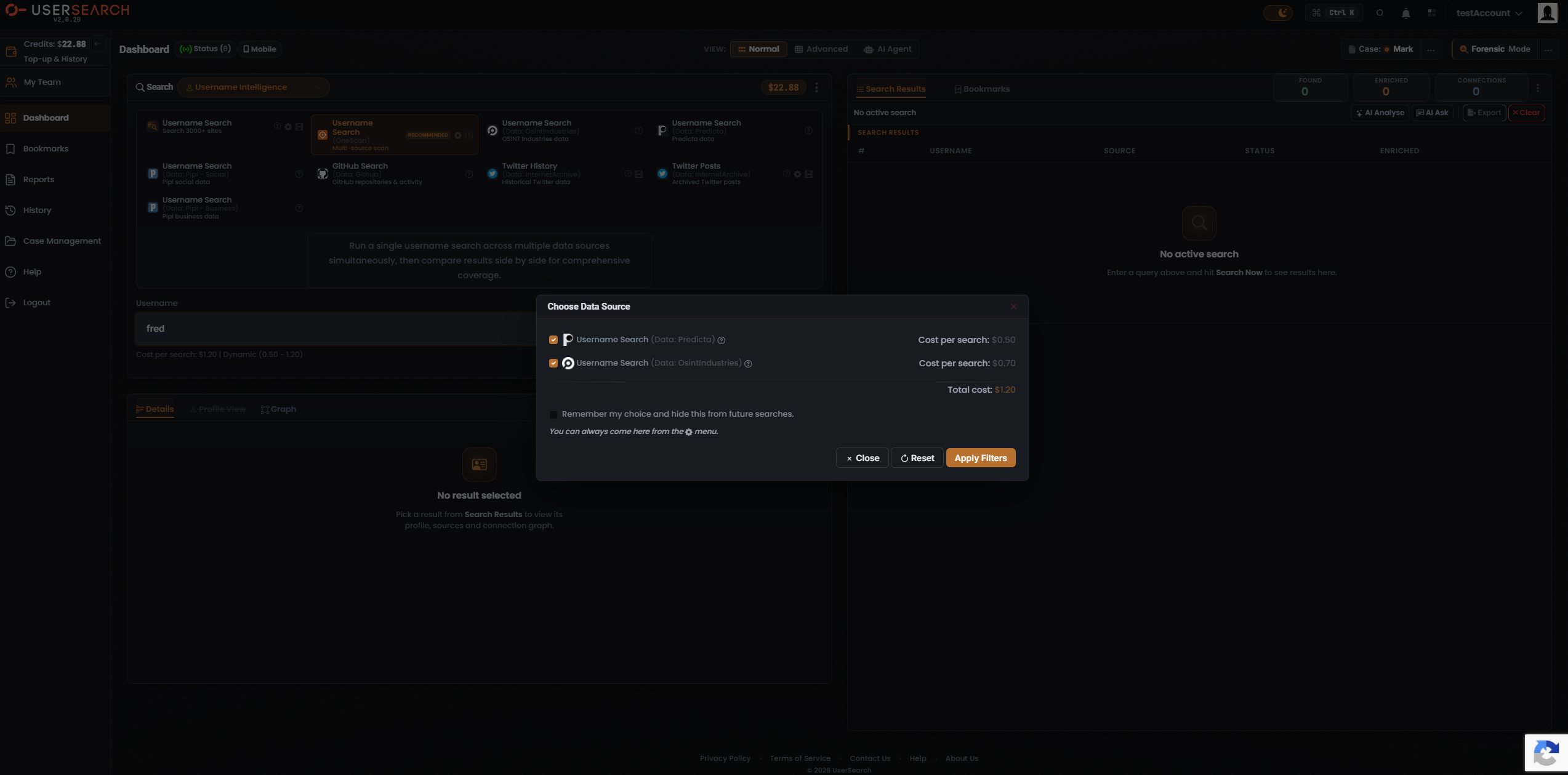
Section titled “Choosing which data sources OneScan queries”Each OneScan Module has a gear (settings) icon that opens its Choose Data Source modal. This modal lists the individual data sources OneScan can query, each with its own checkbox toggle and its own per-search cost.
A captured OneScan modal (Username Intelligence) showed:
- Username Search (Data: Predicta) — enabled — Cost per search: $0.50
- Username Search (Data: OsintIndustries) — enabled — Cost per search: $0.70
- A Total cost: $1.20 line summing the two enabled data sources.
Each data source row carries its own ”?” info icon. Toggling a data source off removes its cost from the total and narrows which data sources OneScan queries — this is the lever you pull to trade coverage against spend.
Below the data source list sits a Remember my choice and hide this from future searches checkbox, with helper text: “You can always come here from the [gear] menu.” The modal footer carries three buttons: Close (×), Reset (↻), and a primary coral-orange Apply Filters. Apply Filters commits your selection to the pending search; Reset restores defaults; Close or × dismiss without committing.
How OneScan is priced
Section titled “How OneScan is priced”OneScan uses the dynamic cost tier. Its price is literally the sum of the data sources left toggled on in the Choose Data Source modal, so the total moves up or down as you enable or disable data sources.
A OneScan search costs the sum of all the data sources left selected (per Lee, 2026-07-08).
In the composer, the OneScan Cost per search line was captured reading:
Cost per search: $1.20 | Dynamic (0.50 - 1.20)
Reading that example:
- The ceiling ($1.20) is Predicta ($0.50) + OsintIndustries ($0.70), with both data sources enabled.
- The floor ($0.50) is the cheapest single data source left on.
- The value in the composer always matches the Total cost line inside the modal.
This dynamic model is what sets OneScan apart from the other two cost tiers: free Modules (0 credits) and fixed Modules (a single unchanging price, such as whole Search types like Vehicle). Costs are denominated in Credits and debited from your main search-credits balance when a paid search runs.
Running a OneScan search
Section titled “Running a OneScan search”- Choose your Search type from the composer header.
- Select the OneScan Module card (badged RECOMMENDED).
- Open Choose Data Source (the gear icon) and toggle the data sources you want, then click Apply Filters.
- Confirm the Cost per search — it is the sum of the data sources you left enabled.
- Type your query and click Search Now.
The merged results populate the Search Results panel, with the Data Source column identifying which data source each row came from.
Verified against UserSearch v2.0.20